Secure Onboarding: Adding VegasGeek to Your Accounts

Why we don’t ask for your passwords

At VegasGeek, we prioritize your digital security.

By adding us as a delegated user rather than sharing your login credentials, you maintain full ownership of your accounts.

You can monitor our activity, manage permission levels, and revoke access at any time with a single click. It’s the safest way to collaborate.

1. Google Analytics 4 (GA4)

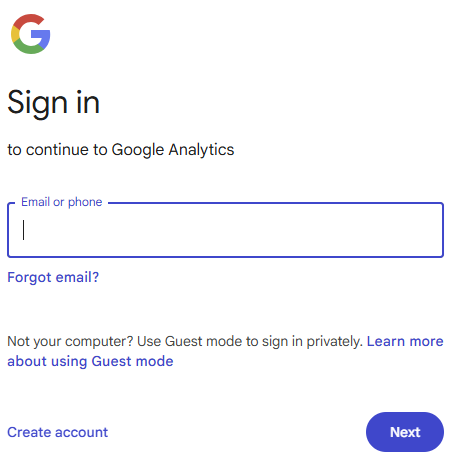
ga sign-in
Step 1: Log in to your GA account at https://analytics.google.com
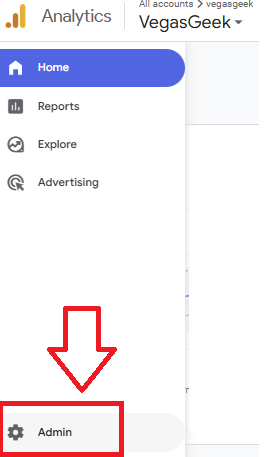
ga admin
Step 2: Click the Admin link in the bottom left corner.
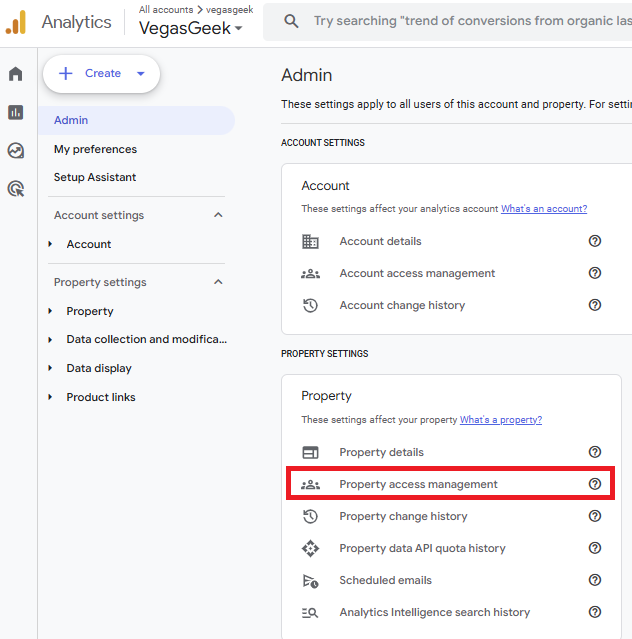
property access management
Step 3: Click Property Access Management
add users
Step 4: Click the plus button and select Add Users.
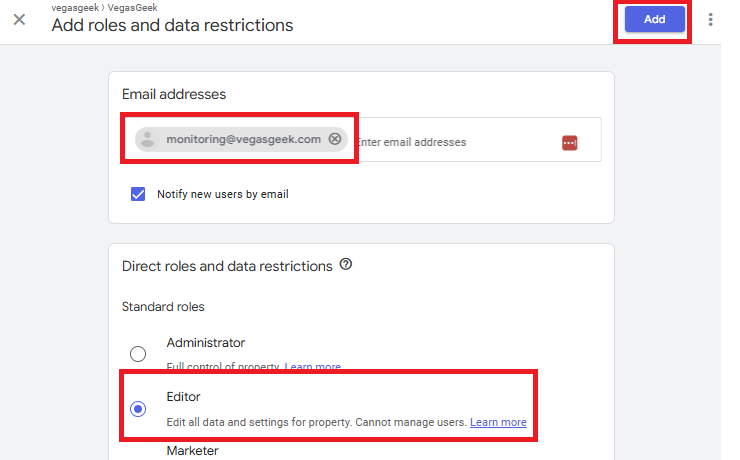
add roles
Step 5: Add the [email protected] email, select the editor role, and click the Add button.

2. Google Search Console (GSC)

gsc login
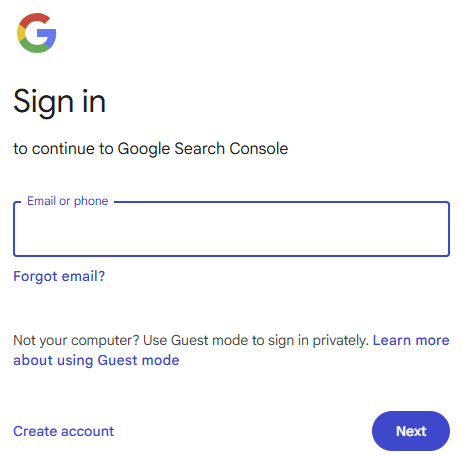
Step 1: Log in to your GSC account at https://search.google.com/search-console/
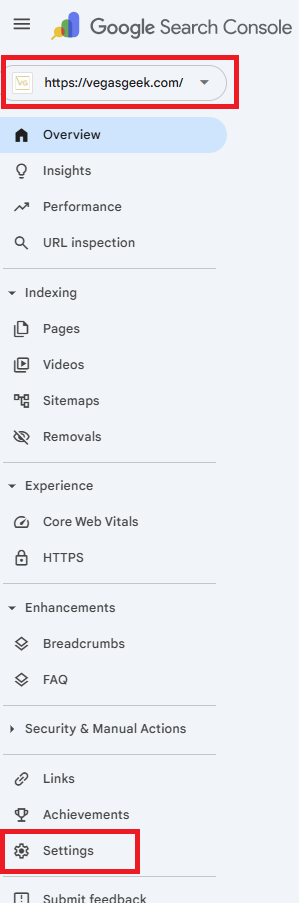
gsc settings
Step 2: Verify that you have selected the correct account. Click settings in the menu.
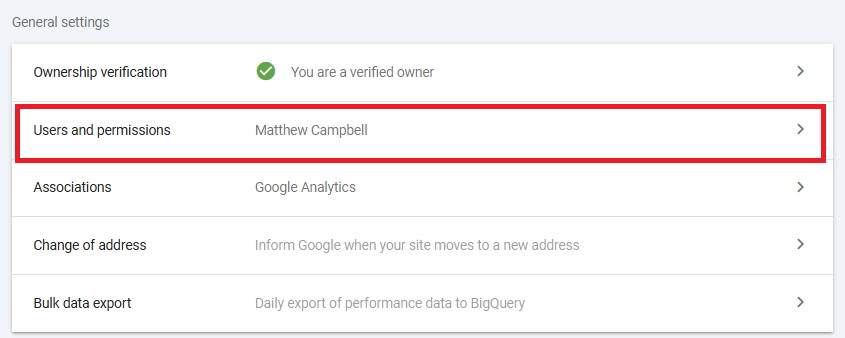
gsc users
Step 3: Click Users and permissions
gsc add user
Step 4: Click add user button.
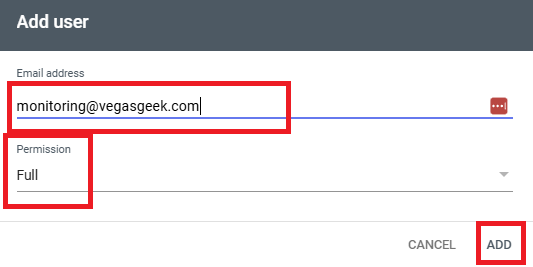
gsc add user full
Step 5: Add the [email protected] email address, give Full permission, and Add.

3. Google Business Profile (GBP)

gsc login
Step 1: Log in to your GBP account at https://business.google.com/locations
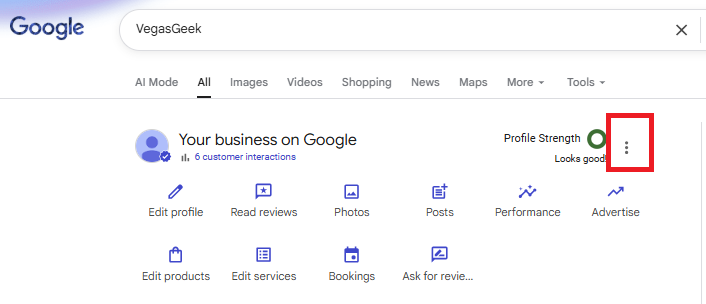
gbp profile
Step 2: Google your business name. Your Google Business Profile information will show at the top. Select the 3-dot menu.
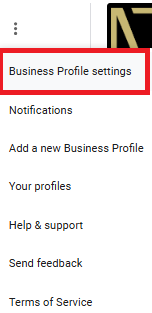
gbp settings
Step 3: Select the Business Profile Settings
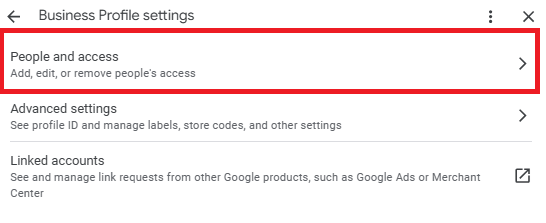
gbp people access
Step 4: Select People and access
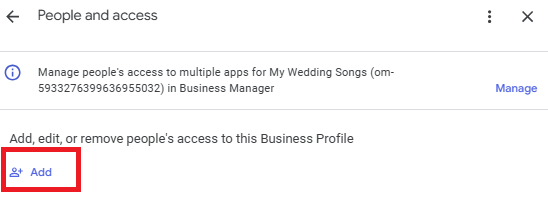
add people
Step 5: Click Add.
gsc invite user
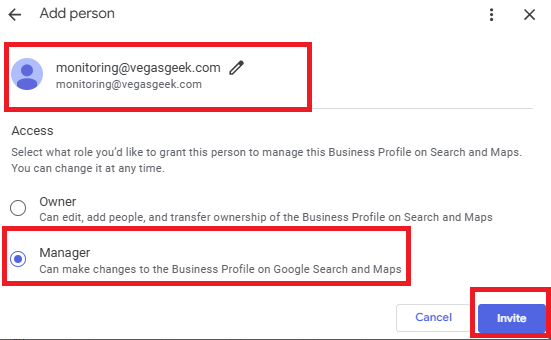
Step 6: Add the [email protected] email, select Manager access, and click the invite button

4. WordPress (CMS)

  • Goal: Allow us to implement on-page SEO and technical fixes.
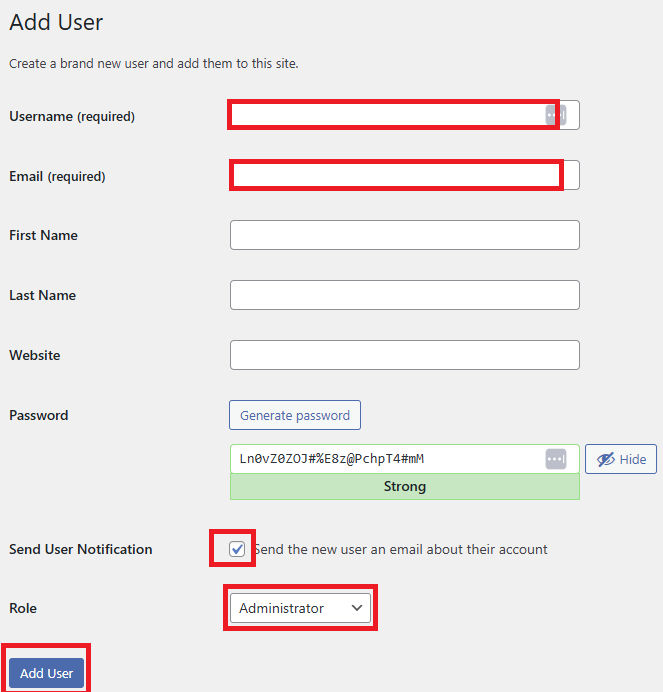
  • VegasGeek Identity: Username: VegasGeek_Admin | Email: [email protected]
  • Step Outline: Users → Add New → Role: Administrator.
  • Login URL: https://yourdomain.com/wp-admin/
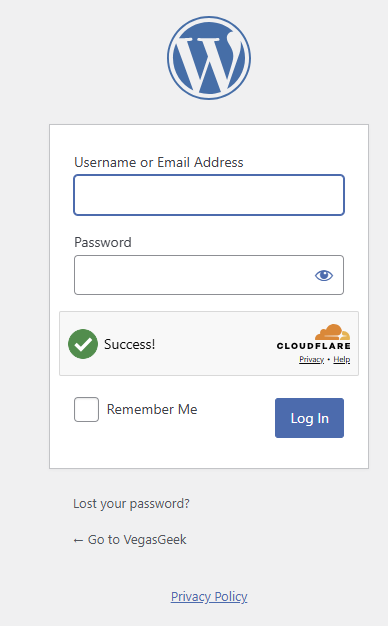
wp login
Step 1: Log in to your website’s WordPress dashboard. This is found at “https://yourdomain.com/wp-admin/
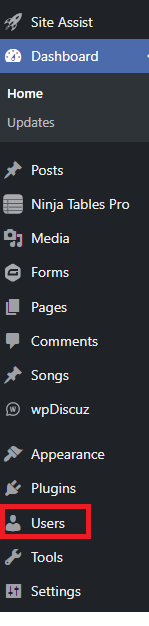
wp users
Step 2: Click Users in the WordPress menu on the left side of the dashboard. (Note: Every list of links in the menu will be different based on the plugins installed.)
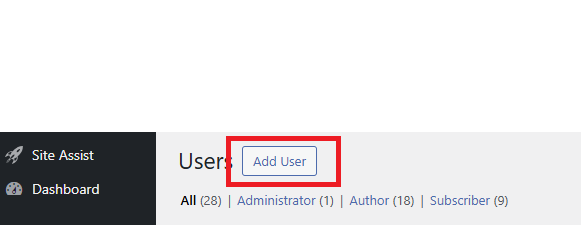
wp add user
Step 3: Select Add User button at the top.
wp add users
Step 4: Add VegasGeek_Admin as the username. Add [email protected] as the email. Verify that the Send the new user an email checkbox is checked. Change the role to Administrator. Click Add User.

Have Questions?